

 UtilitiesPDF Page Remover: Edit PagesClean up any PDF.Explore app
Utilities app by Fenuku Kekeli
Write on PDF: Edit & Annotate
Write, type, draw, highlight, sign, and add notes directly to your PDF documents.


What it does
PDF annotation app for adding text, drawings, highlights, and signatures
Write, type, draw, highlight, sign, and add notes directly to your PDF documents.
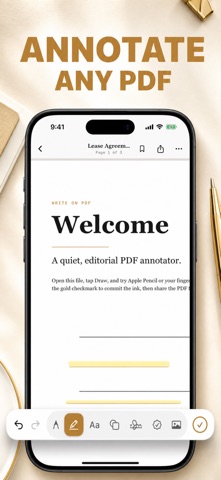
Write on PDF gives you the tools you need to mark up PDFs without complicated editing software. Open your document, make your changes, and save your updated PDF.
Add text anywhere on your PDF. Perfect for filling documents, adding answers, making corrections, or adding extra information.
Use drawing and annotation tools to mark up documents naturally. Circle important information, add handwritten notes, or draw directly on the page.
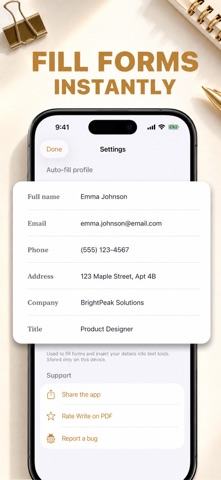
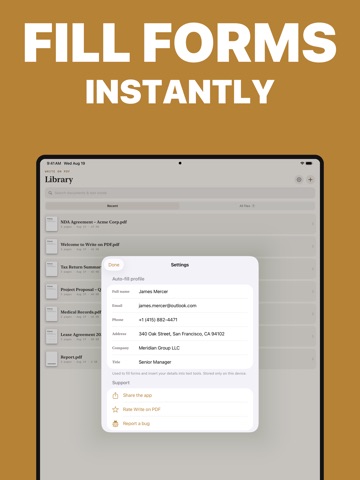
Complete PDF documents and forms from your iPhone or iPad. Add the information you need without printing the document first.
Add your signature directly to PDF documents for a convenient way to complete forms and paperwork.
HIGHLIGHT IMPORTANT TEXT
Highlight important sections of your documents so you can find the information that matters.
From the App Store listing
A look inside
Official listing screenshots. Select an image to view it larger.
Use cases and capabilities
Tasks this app is listed for
These points come from the current App Store description.
- Filling PDF forms
- Signing documents
- Adding text to PDFs
- Annotating documents
- Highlighting important information
- Reviewing documents
Getting started
Check the listing, then try the app.
- Open a PDF from Files or another supported app.
- Add text, handwriting, highlights, or a signature with the available annotation tools.
- Save the updated copy and review it in a PDF viewer before sending.
These steps follow the features in the current App Store description. Exact controls can change between versions.
Need task-specific steps? A guide in the original archive covers this app.
Common questions
About Write on PDF: Edit & Annotate
Can I type or draw on a PDF?
The listing describes text entry, drawing, highlighting, signing, and notes.
Does adding a signature guarantee a document will be accepted?
No. The app can place a signature mark, but legal and recipient requirements vary. Confirm the signing method needed.
More in Utilities
Related apps
UtilitiesPDF Page Remover: Edit PagesClean up any PDF.Explore app  UtilitiesHighlight PDF - Markup NotesHighlight, annotate, and organize your PDF documents with PDF Highlighter & Annotator — the powerful tool designed for students, professionals, researchers, and everyday users who work with PDFs daily.Explore app
 UtilitiesSign On PDF Documents & FormsSign On PDF Documents & Forms helps you fill, sign, scan, and send PDF documents from your iPhone or iPad without printing.Explore app
 UtilitiesSpreadsheet maker: view & editCreate powerful spreadsheets with a easy-to-use XLSX creator.Explore app